




Fix a Billing Issue
Fix a Billing Issue
Billing issues occur when Expensify can’t successfully process payment for your workspace subscription. When this happens, the Workspace owner sees a notification and Account > Subscription explains why payment couldn’t be processed and what action is required.
If the billing issue isn’t resolved within 7 days, the workspace loses access to paid features until the outstanding payment is successfully processed.
Check why your payment failed
Go to Account > Subscription.
If a billing issue exists, the Workspace owner will see:
- A red dot on Account in the navigation tabs (on the left on web, on the bottom on mobile).
- A red dot next to Subscription under Account.
- A message at the top of Account > Subscription explaining why payment couldn’t be processed and what you need to do next.
The notification remains visible until the billing issue is resolved.
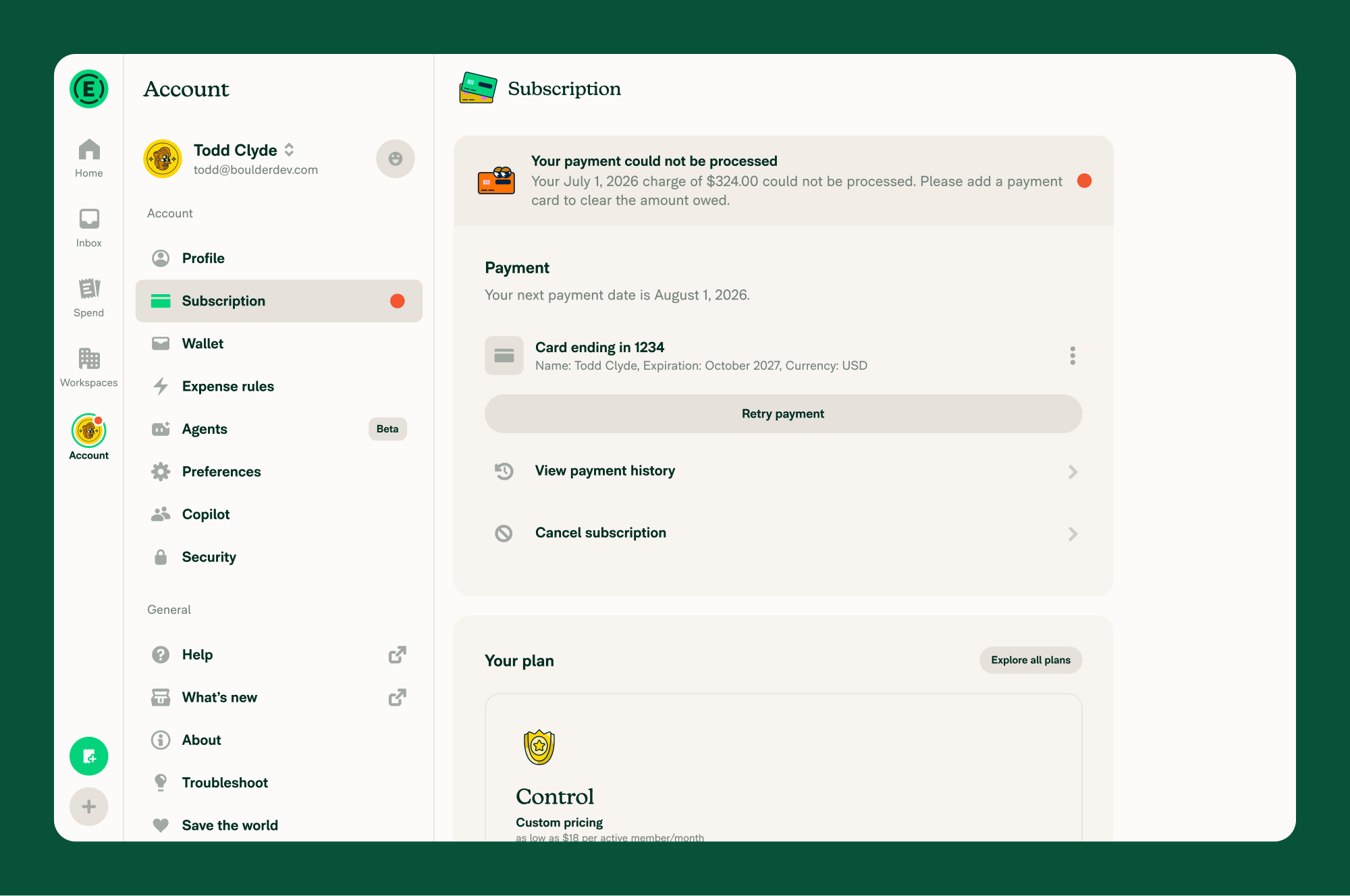
How to fix a billing issue
- In the navigation tabs (on the left on web, on the bottom on mobile) go to Account > Subscription.
- Review the message at the top of the page.
- Complete the action shown.
| If the message says… | Do this |
|---|---|
| Your payment could not be processed | Click Retry payment. If the payment still fails, contact your bank or update your payment card. |
| Your payment card has expired | Update your payment card, then Retry payment. |
| Your payment card is expiring soon | Update your payment card before it expires to avoid future billing issues. |
| Your payment requires authentication | Complete the required authentication, such as 3D Secure verification. |
| Your payment information is outdated | Update your payment card and Retry payment. |
| Your payment is past due | Pay the outstanding balance. |
| A billing dispute is preventing payment | Resolve the dispute with your bank before retrying the payment. |
| Your travel invoice is past due | Pay your travel invoice by the date shown in the message to keep booking travel. |
| Travel booking is paused | Your travel invoice is past due and travel booking is paused. Pay the outstanding travel invoice to start booking travel again. |
How to confirm a billing issue is resolved
After payment is successfully processed:
- The message is removed from Account > Subscription.
- The red notification dots are removed from Account.
- A receipt for the successful payment appears under View payment history
- Access to paid features is restored.
To learn how to find your payment receipt, see Find Your Expensify Billing Receipt.
FAQ
Why can’t I fix the billing issue?
Only the Workspace owner can manage subscription payments. To check who the Workspace owner is, see What is a Workspace owner?.
To become the Workspace owner, see Transfer Workspace Ownership.
What happens if a billing issue isn’t fixed?
The billing issue remains visible until it’s resolved. If the billing issue isn’t resolved within 7 days, the workspace loses access to paid features. Once payment is successfully processed, access to paid features is restored.
Why did my payment fail?
Common reasons include:
- Your payment card couldn’t be charged.
- Your payment card has expired or is about to expire.
- Your payment requires authentication, such as 3D Secure verification.
- Your payment information is no longer valid.
- Your payment is past due.
- A billing dispute is preventing payment.
- Your Consolidated Travel Billing invoice is past due.
To see the specific reason for your workspace, go to Account > Subscription.
What happens if my travel invoice is past due?
If your Consolidated Travel Billing invoice is past due, Account > Subscription shows a message naming the date you need to pay by, along with the red notification dots. Pay the travel invoice by that date to keep booking travel. If it isn’t paid in time, travel booking is paused and the message changes to Travel booking is paused until the outstanding travel invoice is paid.
To learn more about Consolidated Travel Billing, see Enable Consolidated Travel Billing on a Workspace.


